Image Resizing Guide
How to Resize Photo for Online Form Without Losing Quality
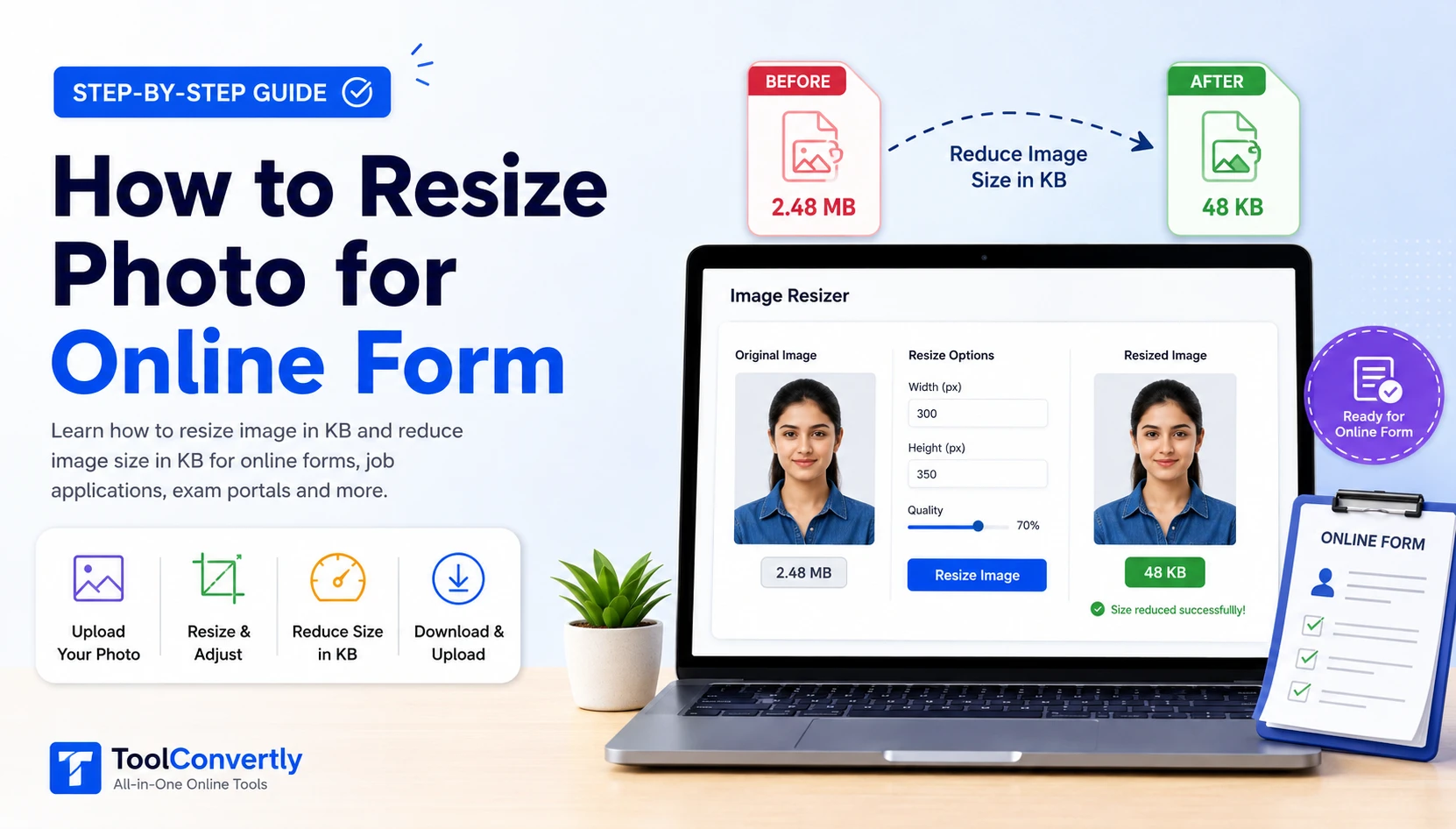
Learn how to resize image in KB for online forms, job applications, exam portals, government forms, school forms, and document uploads without making your photo blurry.
Uploading a photo to an online form sounds simple, but many people face the same problem: the website says the image size is too large. Sometimes the form asks for a photo under 20 KB, 50 KB, 100 KB, or 200 KB. In that situation, you need to resize image in KB without making the photo look unclear.
This guide explains everything in a beginner-friendly way. You will learn what image size means, how to reduce image size in KB, what mistakes to avoid, and how to use a free online image resizer properly.
To resize a photo for an online form, upload your image to an online image resizer, enter the required size or dimensions, keep the photo clear, and download the optimized file. You can use the free image resizer tool by ToolConvertly to resize photos online.
Why Online Forms Ask for Small Photo Size
Most online forms have file size limits because large images take more server space and load slowly. A normal smartphone photo can be 2 MB, 5 MB, or even larger. But many online portals only allow small files like 20 KB to 200 KB.
Common photo size limits include:
- 10 KB to 20 KB for signature uploads
- 20 KB to 50 KB for passport-size photos
- 50 KB to 100 KB for application forms
- 100 KB to 200 KB for document photos
- Specific dimensions like 200×230 px, 300×300 px, or 600×600 px
If your image is larger than the allowed limit, the form may reject it. That is why you need to resize image in KB before uploading.
What Does “Resize Image in KB” Mean?
Many beginners confuse image dimensions with image file size. They are related, but they are not the same.
Image Dimensions
Dimensions mean width and height, such as 300×300 pixels or 600×800 pixels.
Image Size in KB
File size means how heavy the image file is, such as 20 KB, 50 KB, 100 KB, or 1 MB.
When an online form asks you to reduce image size in KB, it means the final file should be smaller in storage size. You may need to reduce dimensions, compress the image, or adjust quality.
How to Resize Photo for Online Form
The easiest way is to use an online image resizer. You do not need Photoshop, mobile apps, or technical knowledge. Follow these simple steps.
1: Check the Required Photo Size
First, read the instructions on the online form. It may mention maximum file size, dimensions, and format. For example:
- Photo size should be less than 50 KB
- Image should be JPG or JPEG
- Dimensions should be 200×230 pixels
- Signature should be less than 20 KB
Do not resize randomly. Always check the required size first.
2: Open an Online Image Resizer
Open a trusted image resizing tool. For example, you can use the ToolConvertly online photo resizer to resize your image directly from your browser.
This is helpful when you need to resize a photo for online forms, ID cards, PAN card photo uploads, school forms, job portals, or document submissions.
3: Upload Your Photo
Click the upload area and select your photo from your phone, laptop, or computer. Try to use the original photo because editing the same image many times can reduce quality.
4: Enter the Required Size
If the form asks for a specific width and height, enter those dimensions. If it only asks for file size, reduce image size in KB by adjusting quality or compression.
For example, if your photo is 2 MB and the form accepts only 100 KB, you need to compress it carefully. Reducing too much at once can make the image blurry, so choose balanced settings.
5: Preview the Image
Before downloading, check whether your face, text, or document details are still clear. For online forms, clarity is more important than making the image extremely small.
6: Download and Upload to the Form
Once the photo is resized, download it and upload it to your online form. If the website still rejects it, reduce the size slightly more and try again.
Example: Resize a Photo Under 50 KB
Let’s say you have a passport-size photo and the form says:
Maximum file size: 50 KB
Recommended dimensions: 200×230 pixels
In this case, you should first resize the dimensions to 200×230 pixels. Then adjust the quality until the final file is below 50 KB. The photo should still be clear enough for identification.
Best Image Format for Online Forms
Most online forms accept JPG, JPEG, or PNG. JPG is usually best for photos because it gives a smaller file size. PNG is better for graphics, signatures, and images with sharp edges, but it can be larger.
Use JPG For
Passport photos, profile photos, ID photos, and application form photos.
Use PNG For
Signatures, scanned graphics, transparent images, and sharp text images.
Common Mistakes While Resizing Photos
1. Making the Photo Too Small
If you compress too much, the photo may become blurry. Online forms may accept the file, but the photo can look unclear. Always check the final preview before uploading.
2. Changing Width and Height Incorrectly
If you change width and height without keeping the correct ratio, the photo may look stretched. For ID photos, this can create problems.
3. Uploading the Wrong Format
Some forms accept only JPG or JPEG. If you upload PNG or WEBP, the form may reject it. Always check the required format before submitting.
4. Editing the Same Image Many Times
Repeatedly compressing the same image can reduce quality. Start with the original image whenever possible.
Tips to Reduce Image Size in KB Without Losing Quality
- Use JPG format for normal photos.
- Resize dimensions before compressing heavily.
- Do not reduce quality below a readable level.
- Crop unnecessary background before resizing.
- Use the original photo instead of a forwarded or already compressed image.
- Check the final file size before uploading to the form.
Who Needs an Image Resizer?
An image resizer is useful for many people. Students need it for exam forms and school portals. Job seekers need it for application forms. Business owners use it for documents and profile uploads. Bloggers and website owners use it to make images load faster.
If you regularly fill online forms, learning how to resize image in KB can save a lot of time.
FAQs About Resizing Photos for Online Forms
Conclusion
Resizing a photo for an online form is easy when you understand the difference between dimensions and file size. The goal is not just to make the image smaller, but to keep it clear enough for submission.
If your form asks for a photo under 20 KB, 50 KB, 100 KB, or any specific size, use an online image resizer, check the preview, and download the optimized image. With the right settings, you can resize image in KB and still keep the photo clean and professional.
Resize Your Photo Online
Use ToolConvertly to resize photos for online forms, documents, and profile uploads.
Open Free Image Resizer