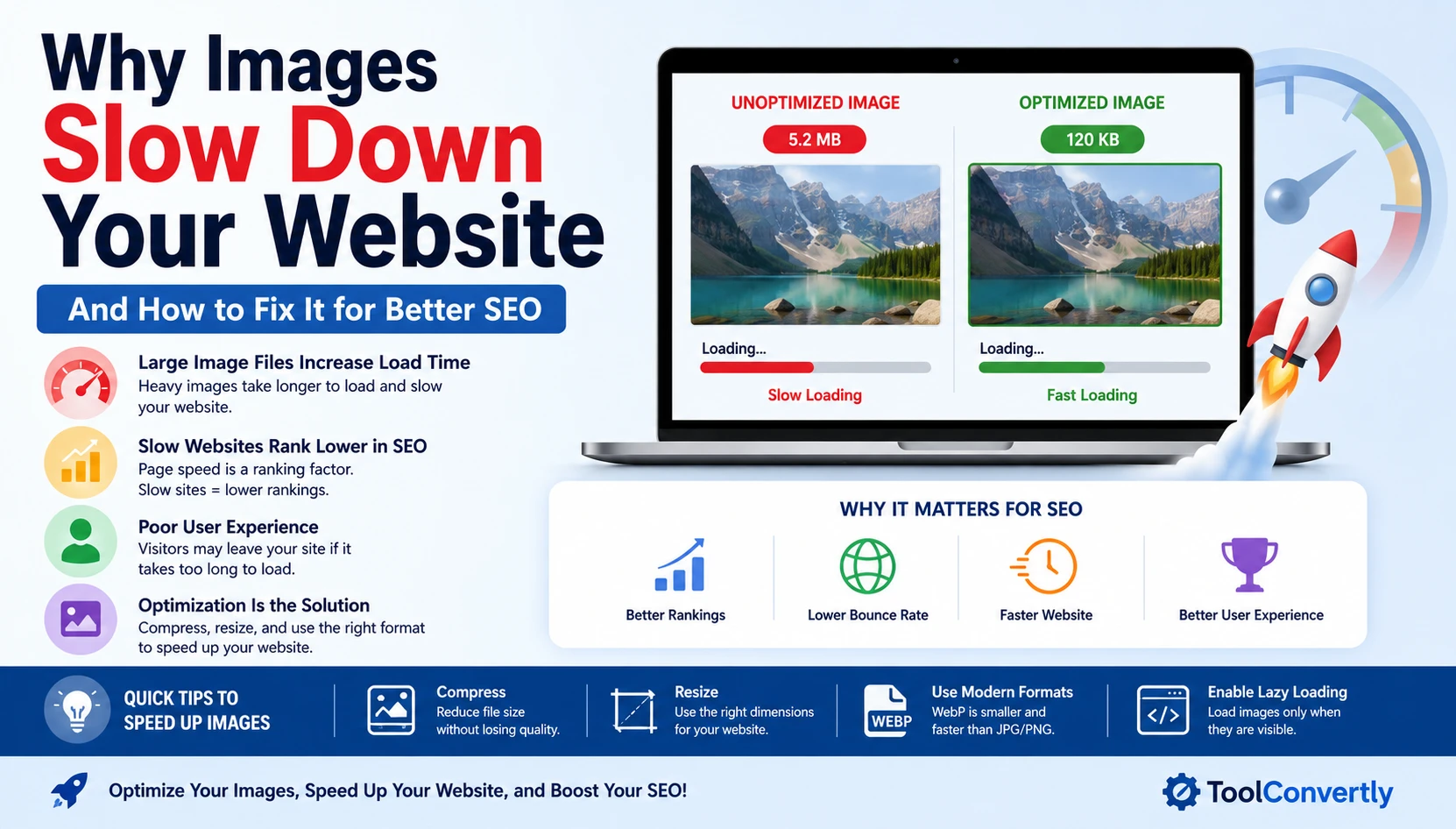
You've built a beautiful website. The design is clean, the content is great — but visitors keep leaving before the page fully loads. Sound familiar? The culprit is almost always the same: unoptimized images.
In this guide, you'll learn exactly why images slow down your website, how that directly hurts your SEO rankings, and — most importantly — how to fix it without any technical skills.
Whether you run a blog, an online store, or a business website, this is one of the most impactful things you can do for your site's performance today.
Why Images Slow Down Websites
Images are the heaviest files on most web pages. According to HTTP Archive data, images account for over 50% of the average webpage's total size. That's more than JavaScript, CSS, and HTML combined.
When someone visits your site, their browser has to download every single file on that page — including every image. If those images are large, the browser takes longer to download them, and the page appears slow or broken to the visitor.
Think of it like sending a letter versus sending a heavy package through the mail. A letter arrives quickly. A heavy package takes much longer — and sometimes gets delayed.
What Happens Behind the Scenes?
Every time a page loads, the user's browser sends requests to your server for files. Each image is one of those requests. If you have:
- A 5 MB hero image at the top of the page
- 10 product photos, each 1 MB
- Several icons and thumbnails
…that's potentially 15+ MB of data just for images. On a slow mobile connection, that could take 10–20 seconds to load. Most users leave after 3 seconds.
Did You Know?
53% of mobile users
abandon a website that takes more than 3 seconds to load. — Google Research
How Slow Images Hurt Your SEO
Many beginners think SEO is only about keywords and backlinks. But page speed is a confirmed Google ranking factor — and images are the #1 cause of slow pages.
Google's algorithm measures something called Core Web Vitals. These are three scores that measure how fast and smooth your page feels to real users:
LCP
Largest Contentful Paint
Measures how long the biggest visible element (often a hero image) takes to load.
CLS
Cumulative Layout Shift
Measures how much the page jumps around as images load — very annoying for users.
FID / INP
Interaction to Next Paint
Measures how responsive the page feels when a user clicks or taps something.
Heavy images directly damage your LCP score and can also cause CLS if no image dimensions are defined. Poor Core Web Vitals scores push your pages lower in Google's search results — even if your content is excellent.
Bottom line: if you care about ranking on Google, you must optimize your images for SEO.
The 5 Biggest Image Problems (With Examples)
Not all slow images are slow for the same reason. Here are the five most common culprits you'll find on real websites:
1
Wrong File Format
Using a JPEG or PNG when a WebP or AVIF format would be 30–80% smaller. Many people still upload BMP or TIFF files — that's like mailing a brick instead of a postcard.
2
Wrong Image Dimensions
Uploading a 4000×3000 pixel image for a 400px thumbnail slot. The browser downloads the full 4K image and scales it down — wasting enormous bandwidth.
3
No Compression Applied
A 3 MB PNG straight from your camera or design tool. Modern compression tools can shrink it to 200–400 KB with zero visible quality loss. Skipping this step is one of the most expensive mistakes you can make.
4
No Lazy Loading
Loading all images when the page opens — even images that are far below the fold that the user may never scroll to. This wastes data and slows the initial page load dramatically.
5
Missing Alt Text
Images without alt text are invisible to Google's crawlers. This doesn't slow load time, but it silently destroys your image SEO — Google can't rank what it can't read.
How to Fix Image Speed Issues: Step by Step
The good news? You don't need to be a developer to fix these problems. Follow these steps and your site will feel like a completely different machine.
Step 1
Audit Your Current Images
Run your website through Google PageSpeed Insights (free). It will show you exactly which images are slowing you down and by how much. Focus on any image flagged as "Serve images in next-gen formats" or "Properly size images."
Step 2
Convert Images to the Right Format
This is where an image converter saves the day. Convert your JPEGs and PNGs to WebP — Google's modern image format that's typically 25–34% smaller than JPEG at the same quality. Use a free online tool like ToolConvertly's free image converter — no signup, no software installation required. Just upload, convert, and download your optimized images in seconds.
Step 3
Resize Images to the Correct Dimensions
Before uploading any image, check the maximum width your website displays it at. A blog that's 800px wide doesn't need a 4000px wide image. Resize to 1.5× the display size to account for high-resolution screens, and nothing bigger.
Step 4
Enable Lazy Loading
Add loading="lazy" to your image HTML tags. This single attribute tells the browser to only load images when the user scrolls near them. WordPress users can install WP Rocket or Smush to do this automatically.
Step 5
Add Descriptive Alt Text to Every Image
Alt text helps Google understand your images. Write a short, natural description of what the image shows. Include your keyword where it makes sense — but don't force it. Bad: "image converter seo image converter." Good: "Screenshot showing how to use an image converter to reduce file size."
Not sure which format to use? Here's a quick breakdown to make the decision easy:
| Format |
Best For |
File Size |
SEO Friendly? |
| WebP |
Photos, banners, general use |
Very Small |
✅ Yes — Google's pick |
| AVIF |
High-quality photos |
Smallest |
✅ Yes — cutting-edge |
| JPEG |
Photos (if WebP unavailable) |
Medium |
⚠️ Acceptable |
| PNG |
Logos, icons, transparency |
Large |
⚠️ Use sparingly |
| SVG |
Icons, logos, illustrations |
Tiny |
✅ Excellent |
Quick rule of thumb: Use WebP for almost everything. Use SVG for logos and icons. Use PNG only when you absolutely need a transparent background with crisp edges and WebP won't do.
Common Mistakes to Avoid
Even people who know about image optimization still fall into these traps. Watch out for these:
✗
Over-compressing images. Going too far with compression causes visible pixelation. Aim for the smallest file size where you can't notice the quality loss — usually 75–85% quality for JPEG/WebP.
✗
Optimizing old images but forgetting new uploads. A common "set it and forget it" failure. Build a habit of always converting and compressing images before uploading to your site.
✗
Using generic file names. Names like IMG_4823.jpg mean nothing to Google. Rename to something descriptive like image-converter-screenshot.webp.
✗
Not defining image width and height. When width/height attributes are missing, the browser doesn't know how much space to reserve for an image. This causes layout shifts (bad CLS score) that hurt both users and SEO.
✗
Thinking a CDN alone will solve everything. A content delivery network helps deliver images faster, but it can't shrink a 5 MB image. Optimization and a CDN together are the winning combination.
Frequently Asked Questions
What is the best image format for SEO? +
WebP is currently the best format for SEO and performance on most websites. It offers excellent quality at significantly smaller file sizes compared to JPEG or PNG, and Google officially recommends it. If you need cutting-edge compression, AVIF is even smaller but has slightly less browser support.
How much will image optimization improve my page speed? +
Results vary, but most websites see a 20–60% improvement in total page load time just from image optimization alone. If your site was heavily unoptimized before, it's common to drop load time from 8–10 seconds to under 3 seconds by converting and compressing images properly.
Do I need paid software to optimize images? +
No. Free tools can handle everything. Online tools like ToolConvertly let you convert images to WebP, compress files, and resize dimensions at no cost. There's no need for expensive software unless you have very advanced requirements.
Will converting to WebP break my website? +
No. WebP is supported by all modern browsers including Chrome, Firefox, Safari, and Edge. The only exception is very old versions of Internet Explorer, but those represent less than 1% of web traffic today and can safely be ignored for most websites.
How do I check if my images are slowing down my site? +
Use Google PageSpeed Insights (free at pagespeed.web.dev). Enter your URL and it will give you a detailed score plus specific suggestions. The "Opportunities" section will tell you exactly which images are problematic and how much you could save by fixing them.
⭐ Featured Snippet Answer
Why do images slow down websites?
Images slow down websites because they are the largest files browsers must download to display a page. When images are uncompressed, in the wrong format (like BMP or raw PNG), or too large in dimensions, they dramatically increase a page's total file size. This makes the browser take much longer to load the page, which harms both user experience and Google SEO rankings.
Conclusion
Images are one of the most powerful elements on any website — and one of the most dangerous when left unoptimized. A beautiful photo that takes 8 seconds to load is worse for your business than no photo at all.
The fixes are not complicated. Audit your page speed, convert images to WebP with a free image converter, resize to appropriate dimensions, enable lazy loading, and write descriptive alt text. Follow these five steps and you'll see real improvements in both your loading speed and your SEO rankings within days.
The best part? You don't need a developer or a budget to start. Tools like ToolConvertly make it completely free and beginner-friendly. Start with your homepage images today — even one optimized image is a step in the right direction.
Your users — and Google — will thank you for it.
Ready to Speed Up Your Site?
Convert & Optimize Your Images Now
Free, instant, no signup required.
Try ToolConvertly Free →